Run your GTM from the browser you're already in.
Hive's agents prospect on LinkedIn, size up markets, and build lead lists by driving your real, signed-in Chrome - not some throwaway cloud browser. You watch the work happen in your own tab bar and step in whenever you want.
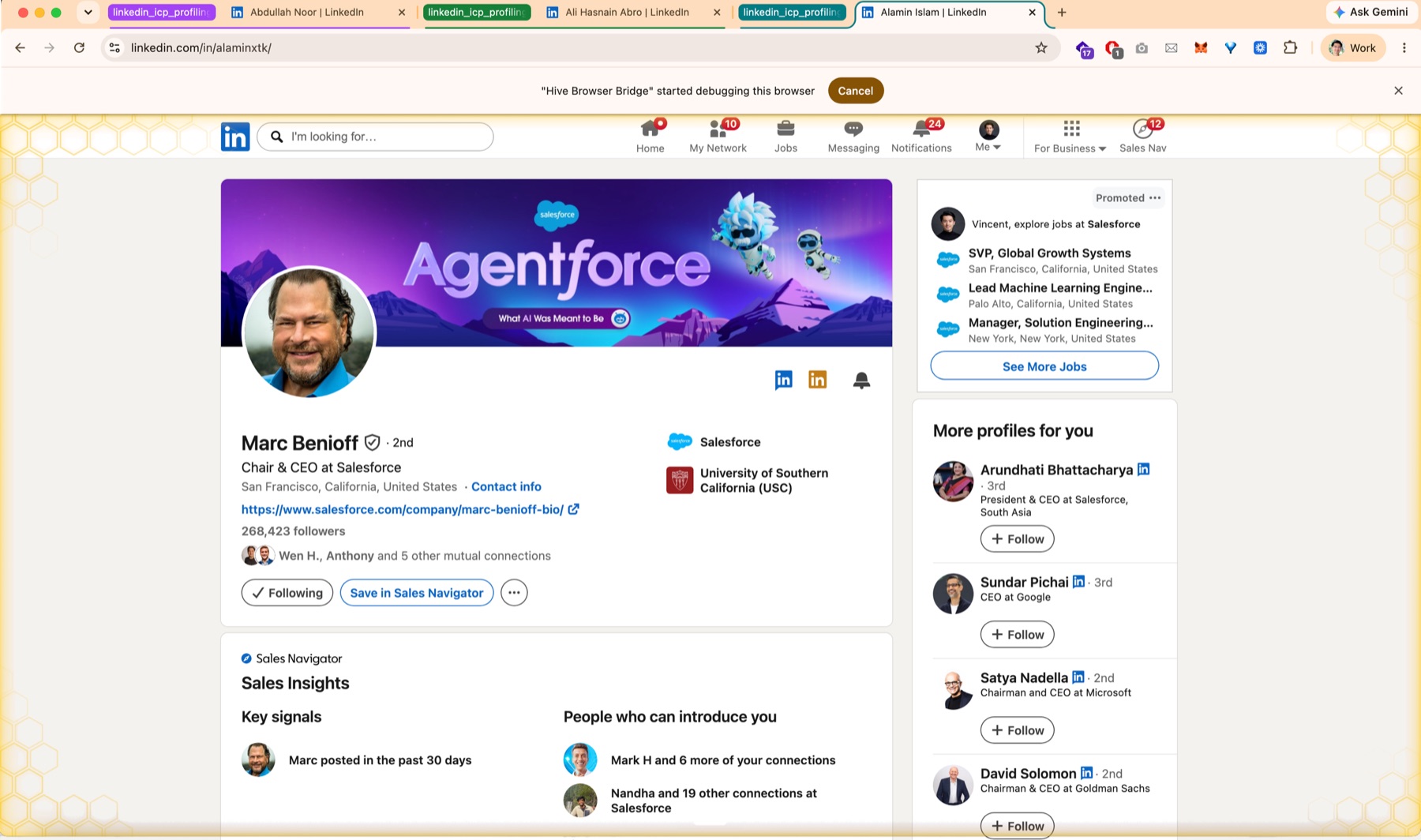
The agents work in the browser you're already logged in to - so they inherit your sessions, look like you to every site, and do real GTM work while you watch it happen live.
Your team's busywork,
run in the background.
Describe the job in plain English. A colony of agents opens a tab group in your browser and works the same sites you do - signed in as you.
Prospect & message on LinkedIn
Scan your connections, qualify by headline, and send personalized DMs from your own LinkedIn - across several accounts at once, paced like a human.
Outreach → playbookSize markets & research competitors
Pull sizing data, build a TAM / SAM / SOM map, chart growth, and map the competitive landscape - from the sources you already trust and are logged in to.
Research → playbookBuild & enrich lead lists
Search LinkedIn, Google Maps, and job boards in parallel, dedupe against your CRM, and enrich every lead with live company, stack, and funding data.
Lead gen → playbookKeep your CRM in sync
Log every touch, reply, and stage change to HubSpot or Salesforce as it happens - tagged by ICP score and reply intent, with zero manual data entry.
Pipeline → playbookNo logins to wire up.
No accounts to get banned.
Most automation runs in a throwaway cloud browser - which means re-auth, bot detection, and work you can't see. Driving your real Chrome fixes all three.
Signed in already
Agents inherit the sessions you already have. No API keys, no re-entering passwords, no auth walls on LinkedIn, your CRM, or anywhere else you stay logged in.
Looks human, because it is
It's your real browser, your real session and fingerprint, working at a human pace - not a datacenter IP and headless profile that platforms flag and block.
You see everything
Work runs in a tab group in your own window. Follow along live, take over a tab yourself, or cancel a run the moment it drifts off track.
Agents stay in their lane.
Letting agents into the browser you live in raises fair questions. Three guarantees keep your work, your tabs, and your accounts yours.
Locked to one account
Every agent is bound to the exact Chrome profile you assign it - injected by the framework, out of the agent's reach. It physically cannot act as a different account, so wrong-account sends are impossible by construction.
Run many accounts at once
Connect several logins - say, two LinkedIn seats - label each, and star a default. Route a worker to each; the bridge keeps every account's connection independent, so one dropping never disturbs the others.
Your tabs stay yours
Each agent is boxed into its own colour-coded tab group - it can't read or touch tabs outside it, and stopping it closes only that group. Your windows, your logins, and Chrome itself are untouched.
From prompt to pipeline,
in three steps.
Install the extension once. After that, every job follows the same shape - you describe it, agents do it, results land where you work.
Describe the job
In Hive, tell a Queen Bee what you want done - “DM 80 ICP prospects”, “size this market”. It plans the work and delegates to worker agents.
Agents open a tab group
The extension opens a fresh, colour-coded tab group in your browser. Each worker drives its own tabs inside it, signed in as you, isolated from your tabs.
Watch results land
Follow the work live in your tab bar. Replies, leads, and research flow back into Hive, your sheet, or your CRM as the agents finish.
A side panel shows which agents are driving the browser right now and whether the link is healthy - rechecked every couple of seconds, so it can't get stuck on a dead connection. Under the hood, a local bridge in the Hive app talks to the extension over a WebSocket and drives tabs via Chrome's DevTools Protocol - nothing leaves your machine.
Put your browser to work.
Add the Hive Browser Bridge from the Chrome Web Store, open the Hive app, and run your first playbook. It updates automatically - nothing else to set up.
Add to ChromeChrome Web Store · Free